
IT and computer rooms
Equipping computer labs and PC pools
Schools, vocational colleges, universities and companies equip their computer labs with technology that puts the picture from one seat onto all the others.
Definition
What a classroom screen sharing system does in a computer lab
In a computer lab, a classroom screen sharing system distributes screen content over dedicated cabling between computer and monitor: at the press of a key the instructor puts their picture on every seat, brings one student picture into the room, and locks keyboard and mouse.
alphadidact® Digital works between the computers, not on them. At every workstation an interface module sits between computer and screen, and the picture signal travels to its destination over dedicated cabling. Nothing is installed, updated or licensed on the PCs.
That makes the system independent of the operating system running in the room and of who looks after the IT. It stands in the computer rooms of schools and vocational colleges, in the PC pools of universities and in corporate training rooms — wherever several screens are meant to show the same thing.
Comparison
Two ways to put a picture into the room
Both ways reach the same goal, but they load different parts: the network and the computers on one side, the cabling of the room on the other.
| alphadidact® Digital | Software on the computers | |
|---|---|---|
| Installation | None. The interface module sits between computer and screen. | A program on every student computer and at the instructor position. |
| Operating system | Irrelevant. What is carried is the picture signal the computer sends to its monitor anyway. | Only the systems the vendor supports. |
| Network | Picture and sound run on dedicated cabling. Access to the IT network is not required. | Every picture transmitted passes through the same network as all other data in the building. |
| Latency | The picture is carried uncompressed: nothing is encoded before it is sent, nothing is buffered. | The picture is encoded, transmitted and decoded again. |
| Recording and remote support over the internet | Not provided for. The system ends at the walls of the room. | Possible: recording of the screens and access from outside the room. |
The last row belongs to the software. Anyone who wants to record sessions or reach individual computers remotely needs a program on those computers — hardware in the room does not take that on.
Instructor position
Every source at one seat
The connections come together at the instructor position. The basic configuration comprises the local computer, a monitor, an additional notebook and two separately addressable projectors or displays. Document cameras, visualisers and microscopes can be connected as further sources. Operation is by touchscreen, system keyboard or tablet; the tablet connects to the installation over Bluetooth and joins no network.
See the controls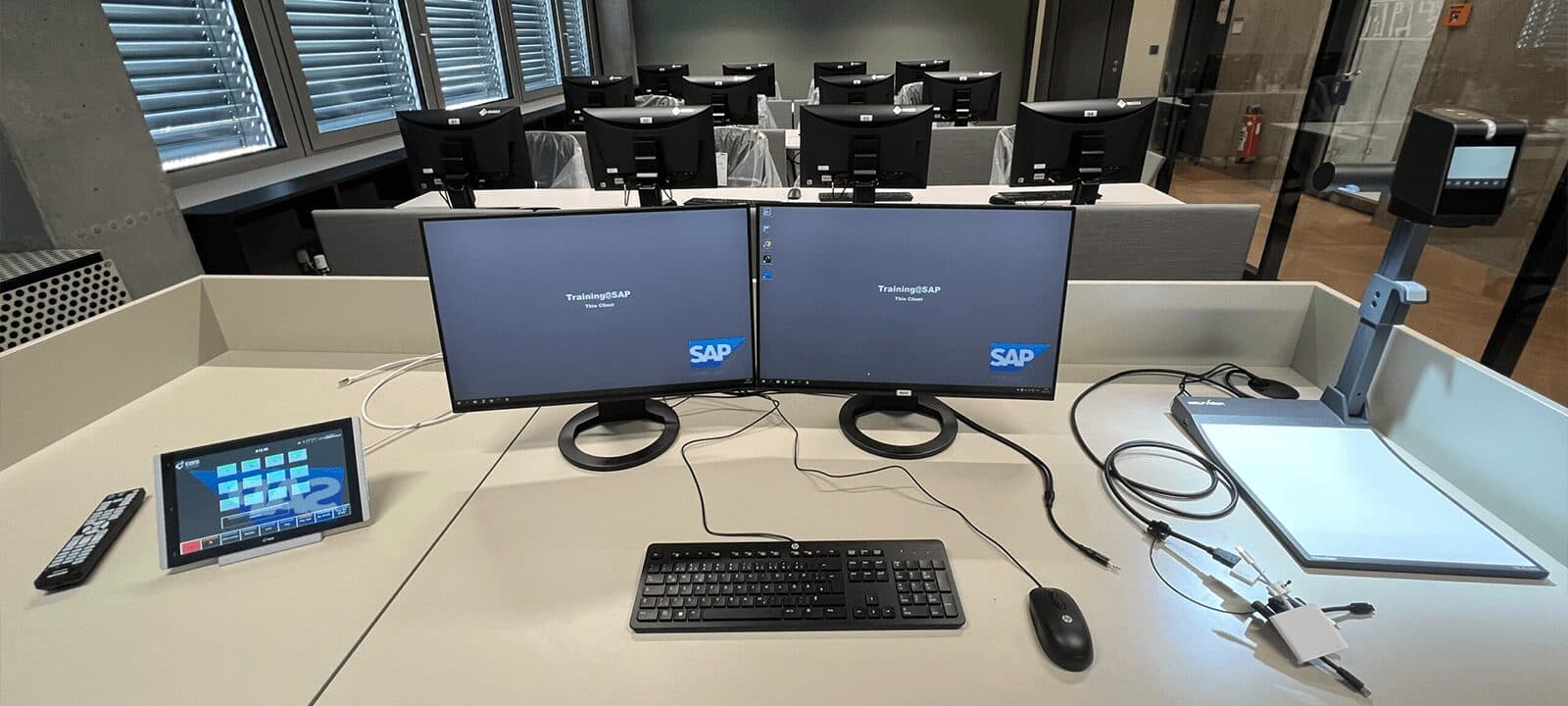
Student seats
One module between computer and screen
At every student seat an interface module sits between computer and screen. The signal carried is HDMI with audio; the sockets on the boxes are DVI-D and can be screwed down — in a permanently installed system that holds where a plug would otherwise work its way out. A fail-safe circuit keeps computer, monitor, keyboard and mouse usable at every seat throughout; two screens per workstation are possible.
The system in detail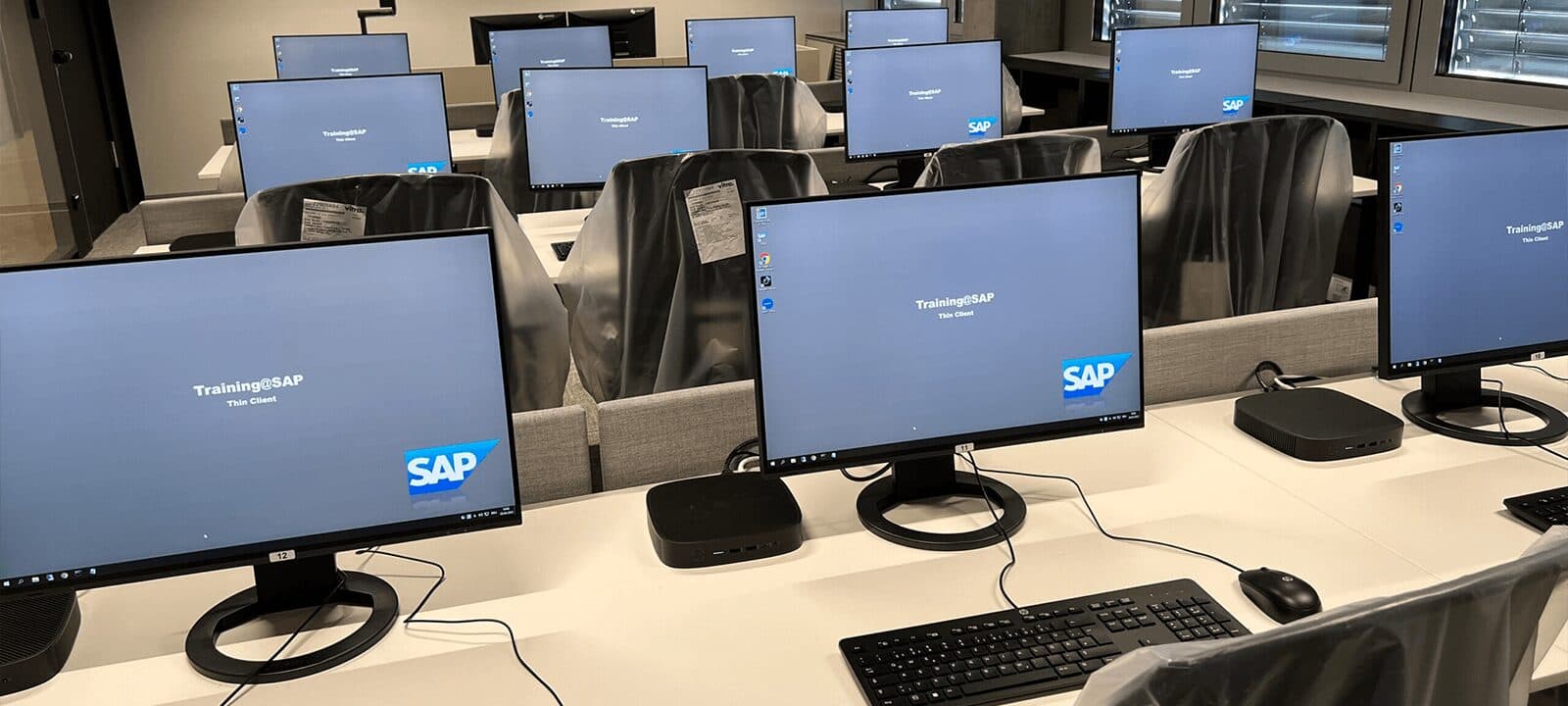
Frequently asked questions
Questions from procurement
Answers to what school authorities, computing centres and purchasing departments want to know before a tender.
Which operating system do the computers need?
None in particular. What is carried is the picture signal the computer sends to its monitor anyway, not the screen content of a program. Workstations with different operating systems and thin clients can therefore stand side by side in the same computer lab, and a change of operating system version leaves the training system untouched.
Can the existing PCs and screens be kept?
Yes. The interface module goes between computer and screen; the PC, monitor, keyboard and mouse stay as they are. Notebooks, document cameras, visualisers or microscopes can likewise be connected as additional signal sources.
Can an existing computer lab be retrofitted?
Yes, provided cable routes to the workstations exist or can be created. In star cabling each module has one line to the central unit; using a satellite setup, up to 100 workstations are possible in one system. In ring cabling the modules are wired in series, which manages with short cables from seat to seat and carries up to 50 student seats.
What maintenance is involved?
None on the computers. Nothing is installed, updated or licensed, and access to the IT network is not required. EBS gives a three-year warranty on the equipment, extendable to five years on request; manufacturing is in-house in Heusenstamm near Frankfurt.
Can the instructor see what the students are working on?
Yes. A video scanner shows the student screens one after another on the instructor monitor, moving on every second, and several seats at once in a grid view. To bring attention back to the front, all student screens can be blanked and keyboards and mice locked.
Next step
Planning a computer lab
Which computers and screens already stand in the room decides the scope. With that, the floor plan and the number of workstations, a quotation can be calculated.
EBS Euchner Büro- und Schulsysteme GmbH, Heusenstamm near Frankfurt – manufacturer since 1984, installations in over 50 countries.